
AI-powered answering systems integrated with CRMs can save businesses from losing leads due to missed calls or manual errors. By automating tasks like lead logging, AI phone scheduling, and follow-ups, these tools ensure every call is tracked and acted upon efficiently. Here’s what you need to know:
- Missed Calls Cost Big: 85% of unanswered callers don’t call back, and businesses lose up to 74.1% of calls due to manual errors.
- Automated CRM Sync: Systems like Answering Agent log call details, create records, and trigger actions instantly, reducing human errors.
- Setup Essentials:
- Audit your CRM: Standardize data formats (e.g., phone numbers in E.164) and map fields for smooth integration.
- Check compatibility: Use APIs for real-time syncing or middleware like Zapier if APIs aren’t available.
- Test thoroughly: Simulate calls to ensure data flows correctly and syncs without errors.
- Monitor Performance: Track metrics like sync success rate (aim for 99%+) and latency (under 30 seconds) to maintain efficiency.
With proper integration, AI answering systems turn calls into actionable CRM entries, helping businesses avoid revenue loss and improve customer response times.
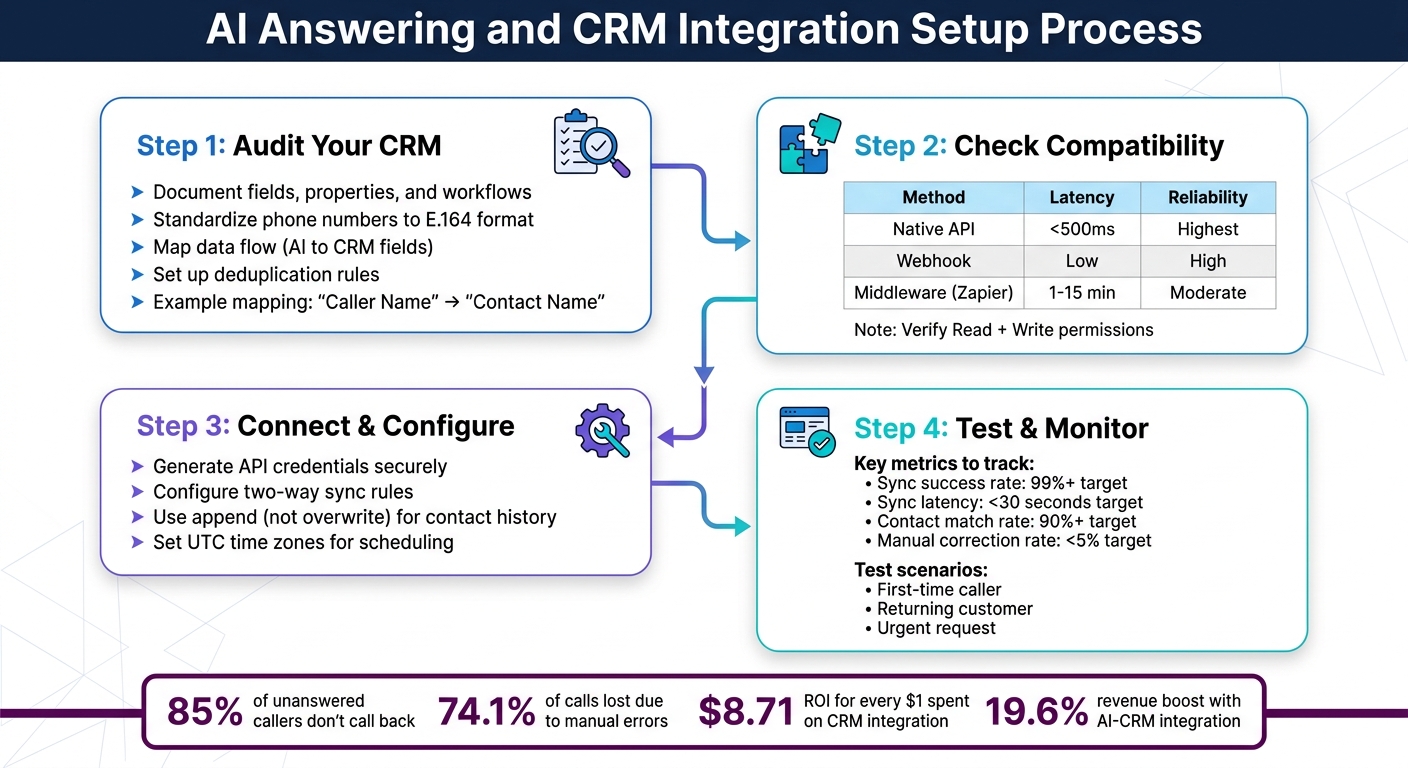
AI Answering and CRM Integration Setup Process: 4-Step Guide
Preparing Your CRM for AI Integration
Getting your CRM ready is key to implementing AI phone answering for lead capture and follow-up. A well-organized system ensures everything runs smoothly without unnecessary hiccups.
Audit Your Current CRM Processes
Start by documenting everything about your CRM - fields, custom properties, pipeline stages, and automation workflows. This step ensures the AI integrates seamlessly without requiring a complete overhaul.
"The AI integration needs to fit into your existing structure, not require you to rebuild it".
One critical task is standardizing phone number formats. For instance, if your CRM stores numbers as "(555) 123-4567" and "+15551234567", the AI might fail to recognize duplicates, leading to multiple entries for the same contact. Converting all phone numbers to the E.164 format (e.g., +1 for the U.S.) avoids this issue.
Next, map out how data will flow between the AI and your CRM. Identify the fields the AI will write to - like new leads, call notes, or appointment times - and the ones it will read, such as customer names or calendar availability. Create a simple mapping document that links AI-captured data to specific CRM fields. For example:
- "Caller Name" → "Contact Name"
- "Phone Number" → "Phone"
- "Call Reason" → "Lead Source"
Set up deduplication rules using phone numbers as unique identifiers. This prevents multiple entries when the same person calls more than once. Also, decide what actions should follow an AI-logged call, such as sending a Slack notification, a confirmation text to the customer, or creating a task for your team.
Finally, once your CRM data is cleaned up and organized, check its technical compatibility with the AI system.
Check CRM Compatibility with AI Systems
After documenting your CRM processes, verify that its API and automation capabilities align with the AI system’s requirements. Start by confirming whether your CRM offers native API support, which is the fastest and most reliable way to enable real-time syncing. Look for an "API Reference" in the help section and check for endpoints related to adding contacts, logging activities, and scheduling events.
Ensure your CRM supports two-way sync with "Read + Write" permissions. This allows the AI to pull essential information, like contact histories and calendar availability, while also adding new data, like leads or call summaries. Without this, the AI’s functionality will be limited.
If your CRM lacks a native API, check whether it supports webhooks or works with automation platforms like Zapier, Make, or n8n. These tools can connect your CRM to thousands of apps, but keep in mind they may introduce delays compared to direct API connections. Lastly, confirm that your CRM allows custom fields so you can store structured data, such as "AI Call Summary" or "Lead Urgency."
Integration Method Best For Latency Reliability Native API Real-time booking and lookups Minimal (<500ms) Highest Webhook Triggering workflows or updates Low High Middleware (Zapier) Connecting apps without direct support Moderate (1–15 min) Moderate
When setting up API access, follow the principle of least privilege. Grant the AI only the permissions it needs, like creating contacts or accessing calendars, rather than full admin rights. This reduces the risk of data breaches if credentials are ever compromised.
sbb-itb-abfc69c
Setting Up AI Answering and CRM Sync
Integrating your AI answering system with a CRM ensures every call detail seamlessly fits into your organized data structure. The aim is to establish a dependable connection that syncs call information accurately.
Connect Your AI System to the CRM
Start by generating API credentials in your CRM's settings. Popular platforms like Salesforce and HubSpot utilize OAuth for secure access, while others may provide API keys or tokens. Follow these steps in the developer or integrations section of your CRM:
- Create a new API connection.
- Assign read and write permissions for contacts, activities, and calendar events.
- Copy the generated credentials.
Keep these credentials secure - never share them publicly and rotate them regularly to stay compliant with security protocols.
For platforms like Answering Agent, input your API key into the integration dashboard. This is a common feature among the top AI receptionist services available today. The system will manage the technical handshake automatically. If your CRM lacks a native API, you can use middleware tools like Zapier or Make to bridge the gap. Be aware, however, that middleware connections might introduce some delay in data syncing.
Configure Two-Way Sync Rules
Define clear rules for how data flows between the AI system and your CRM. For example:
- AI to CRM: Log new contacts, call summaries, recordings, and update deal stages to improve lead conversion.
- CRM to AI: Enable the AI to greet returning callers by name and check real-time calendar availability for scheduling.
Use append rules instead of overwrite settings to maintain a complete contact history. Each call should add a timestamped note rather than replacing existing data. For scheduling, ensure both systems use UTC internally and only convert to local time zones for display. This helps avoid errors in appointment times.
To prevent silent failures, use strict parameter validation. Once these rules are in place, test the setup thoroughly to confirm everything functions as intended.
Test the Integration with Sample Data
With your sync rules configured, it's time to test the integration. Start by making a live test call. Introduce yourself, state the reason for calling, and request an appointment. Within 30 seconds, check your CRM to ensure a new contact is created with the correct details, including name, phone number, and call summary. If testing appointment booking, verify that the event appears with the correct date, time, and time zone.
Run various test scenarios, including:
- A first-time caller.
- A returning customer.
- An urgent request.
Ensure the AI system recognizes returning callers, retrieves their names from the CRM, and greets them personally. Test workflows by using keywords like "cancel" or "new booking" to confirm they trigger the right actions. For the first two weeks, monitor the integration daily to catch any issues with missing records or incorrect mappings before they impact real customer interactions.
"CRM integration transforms an AI receptionist from a sophisticated answering machine into a genuine digital team member." – Justas Butkus, Founder & CEO, AInora
Troubleshooting Common Setup Problems
When connecting your AI answering system to a CRM, integration hiccups are almost inevitable. In fact, 68% of B2B teams report challenges like failed API calls and mismatched data schemas during setup, and nearly half of AI CRM projects face integration problems within the first 90 days. The good news? Most of these issues fall into predictable patterns, and with the right approach, they can be resolved smoothly. Let’s dive into some common setup challenges and how to tackle them effectively.
Fix Data Mapping Errors
Data mapping errors are a frequent culprit in AI-CRM integration woes. These occur when the data sent by the AI system doesn’t align with the CRM’s field requirements. For example, data schema mismatches - like sending text to a field that expects a number or mismatched date formats - are responsible for 28% of integration errors.
Another common headache? Picklist mismatches. If the AI sends "Client Referral" but the CRM recognizes only "Referral", the sync will fail. Similarly, inconsistencies in formatting, such as phone numbers, can cause duplicate records. For instance, "+1 (555) 123-4567" in one system might not match "15551234567" in another.
"CRM integrations don't fail because systems can't connect. They fail because the data moving between them isn't properly managed." – Arran Kingston, Founder @ 4admin
To avoid these pitfalls:
- Normalize phone numbers to the E.164 format.
- Use a data dictionary with the "Four-Column Rule": document the Source Field, Destination Field, Field Type, and any necessary Transformation Logic (e.g., "If Status = X, change to Y").
- Before running a full sync, perform a "10-Record Test" by syncing a small batch of records to verify that data lands correctly and transformation rules work as expected.
Proper data mapping ensures clean and accurate data flow between your AI system and CRM, preventing errors that could derail your integration.
Common Error Root Cause Quick Fix Duplicate Contacts Phone format mismatch (+1 vs. 001) Normalize to E.164 format Blocked Records Missing mandatory CRM fields Identify required fields and clean source data Failed Lookups Schema differences (e.g., 'LastName' vs. 'last_name') Map fields explicitly in your integration Overwritten Data No field ownership rules Define which system owns each record stage
Once data mapping is under control, you’ll want to tackle synchronization delays to ensure everything runs smoothly.
Resolve Sync Delays and Failures
Sync delays or failures can disrupt your integration, but most platforms provide tools to diagnose and fix these problems. For example, Salesforce has an Event Log, HubSpot includes an API debugger, and most AI systems offer delivery logs with HTTP status codes. Common codes like 401, 403, 429, and 5xx point to authentication issues, rate limits, or server errors.
Rate limiting is a frequent issue. For instance, Salesforce limits API calls to 15 per second per user. If your AI system handles multiple calls simultaneously, you could easily exceed this limit. To manage this, implement exponential backoff with jitter and request throttling. For authentication errors, check if your OAuth token has expired - look for "Disconnected" or "Expired" statuses in your integration dashboard and renew the token if necessary.
Silent failures, where data doesn’t update due to hidden validation rules, can also occur. To catch these, monitor API metrics using tools like Datadog or New Relic and set up alerts for failure rates above 5%. Testing changes in a sandbox environment before deploying to production can help identify API conflicts or webhook issues without impacting live customer data. Also, ensure that webhook URLs are public HTTPS endpoints, as internal IPs or non-HTTPS URLs often fail.
For Answering Agent users, the platform’s 99.93% accuracy rate across over 17,724 calls means sync issues are rare. However, if they do arise, delivery logs provide clear diagnostics to quickly pinpoint and resolve the problem.
Monitoring and Improving Sync Performance
Once your integration is up and running, keeping an eye on performance is key to ensuring your CRM remains a powerful tool for driving customer conversions. By monitoring sync processes and leveraging call data, you can uncover opportunities for growth and maintain a seamless system.
Track Real-Time Sync Accuracy
For the first two weeks after integration, make it a habit to monitor the sync daily. This helps catch issues like missing records or field errors early on. Check webhook logs regularly for any error messages that could indicate failed data transmissions. To stay on top of things, set up instant notifications via Slack or email for new leads. If these alerts suddenly stop, it’s a clear sign something’s wrong with the sync.
Keep an eye on sync latency as well. In a perfect setup, native API integrations should process data almost instantly (under 500ms). Middleware tools like Zapier, however, may introduce delays ranging from 5 to 30 seconds, depending on your subscription plan. If you notice unexpected slowdowns, investigate potential causes like CRM rate limits or network issues. Also, review your deduplication rules to ensure phone numbers are treated as unique identifiers. This helps avoid duplicate entries and keeps your database clean.
Metric What It Tells You Target Goal Data sync success rate Percentage of calls successfully creating/updating CRM records 99%+ Sync latency Time from call completion to CRM record appearance Under 30 seconds Contact match rate Percentage of returning callers correctly identified 90%+ Manual correction rate Percentage of records needing human adjustment Under 5%
Once your sync meets these benchmarks, you can shift your focus to transforming the data into actionable insights for your business.
Use Analytics for Business Growth
Achieving accurate sync performance is just the starting point. With reliable call data in your CRM, you can begin driving measurable growth. For example, businesses that integrate AI receptionists with CRMs have reported a 19.6% boost in revenue, while CRM integrations on average return $8.71 for every dollar spent. To track this impact, tag all CRM records created by your AI system. This allows you to attribute revenue directly to the integration and justify ongoing investments.
"An AI receptionist without CRM integration is like a new employee who answers the phone perfectly but never writes anything down." – Justas Butkus, Founder & CEO, AInora
Use this data to monitor key growth metrics such as lead scoring (based on intent and urgency captured by AI), booking conversion rates, and the reduction in manual data entry. You can also set up automated workflows to re-engage non-bookers using AI follow-up strategies or route calls to the appropriate team members based on CRM account assignments. Start with basic sync tasks for a few weeks before diving into more advanced workflows.
Conclusion
AI-powered answering solutions with CRM synchronization bridge the gap between calls and follow-ups. By integrating these tools effectively, your AI evolves from a basic answering system into a digital teammate - logging leads, AI tools for appointment scheduling, and initiating follow-ups automatically. Achieving this requires thorough CRM preparation, accurate data mapping, and rigorous sync testing.
Using native APIs ensures lightning-fast performance with sub-500ms latency, unlike middleware solutions that can introduce delays of 5–30 seconds. It’s best to start with simple tasks like contact creation and call logging. Once your system reliably meets key benchmarks - such as a 99%+ success rate, latency under 30 seconds, and minimal manual corrections - you can confidently expand to more complex workflows.
A well-integrated system transforms your calling solution into a true business asset. For service-based businesses, tools like Answering Agent automate call handling and CRM sync seamlessly. With a proven 99.93% accuracy rate across 17,724+ scored calls and the ability to handle unlimited simultaneous calls around the clock, it ensures no lead slips through the cracks due to manual errors or delays. Plus, it delivers these capabilities at a fraction of the cost of a human receptionist.
Ultimately, the difference between businesses that capture every opportunity and those that lose 74.1% of calls often boils down to one key factor: seamless integration. With the right setup and ongoing monitoring, your AI and CRM can work together to turn every call into a valuable, actionable lead.
FAQs
What CRM fields should I map first for AI call logging?
To make AI call logging work smoothly, it's important to link key CRM fields that store critical details about the caller and the call itself. These fields should include information like the contact's name, phone number, call timestamp, call duration, and any notes or transcripts from the conversation. This approach reduces the need for manual data entry, ensures vital details are captured, and helps streamline follow-ups and overall customer relationship management.
How do I prevent duplicate contacts from AI-captured calls?
To keep your CRM free of duplicate contacts, focus on using unique identifiers like email addresses or phone numbers during integration. Make sure data is validated at the time of entry, and double-check that fields are mapped correctly. Setting up validation rules can also catch errors early.
Performing regular data audits helps you maintain clean and accurate records over time. Additionally, automating repetitive tasks can streamline processes and reduce inconsistencies. A well-thought-out setup and proper synchronization are essential for avoiding duplicates and handling your data accurately.
What should I do if calls sync late or fail in my CRM?
When dealing with sync issues, the first step is to ensure your data is accurate and correctly formatted. Errors in these areas are common culprits. Double-check that API keys, credentials, and field mappings are properly configured. It’s also a good idea to conduct regular audits of your data and keep an eye on system logs for any errors or warnings. If you spot compatibility or validation issues, address them promptly.
To minimize future problems, consider implementing automated checks. These can catch errors early and save you a lot of troubleshooting later. Finally, maintain clear and detailed documentation of your integration setup - this can be a lifesaver when resolving issues or onboarding new team members.
Related Blog Posts
Book a walkthrough
See it handle your calls.
Book 20 minutes, or hear a sample call first.
Ready to see it handle your calls?
Book a walkthrough, or hear a short sample call first.
Related Articles
AI Call Routing Integration with Medical CRMs
AI call routing tied to medical CRMs cuts missed calls, automates scheduling and documentation, and enforces HIPAA-secure data flows.
Missed Calls to Leads: AI CRM Solutions
AI CRM answers missed calls, qualifies leads instantly, and syncs data to recover lost revenue and reduce abandoned callers.
How To Measure Lead Conversion From Calls
Measure phone call lead conversions: define conversion criteria, track qualified calls, analyze post-call outcomes, and calculate conversion rate.