
Knowledge
Team Settings -> AI Configuration -> Knowledge
Add hours, pricing, memberships, policies, service rules, and anything the AI should know before answering.
A simple first-pass guide for owners, managers, and front-desk teams. Learn where to see customer conversations, handle tasks, configure the AI, and turn on the channels your team uses.
Jump to any section
Start here
When you sign in, use the left navigation to move between conversations, tasks, reports, contacts, phone numbers, and team settings. Most teams live in Tasks and Conversations day to day.
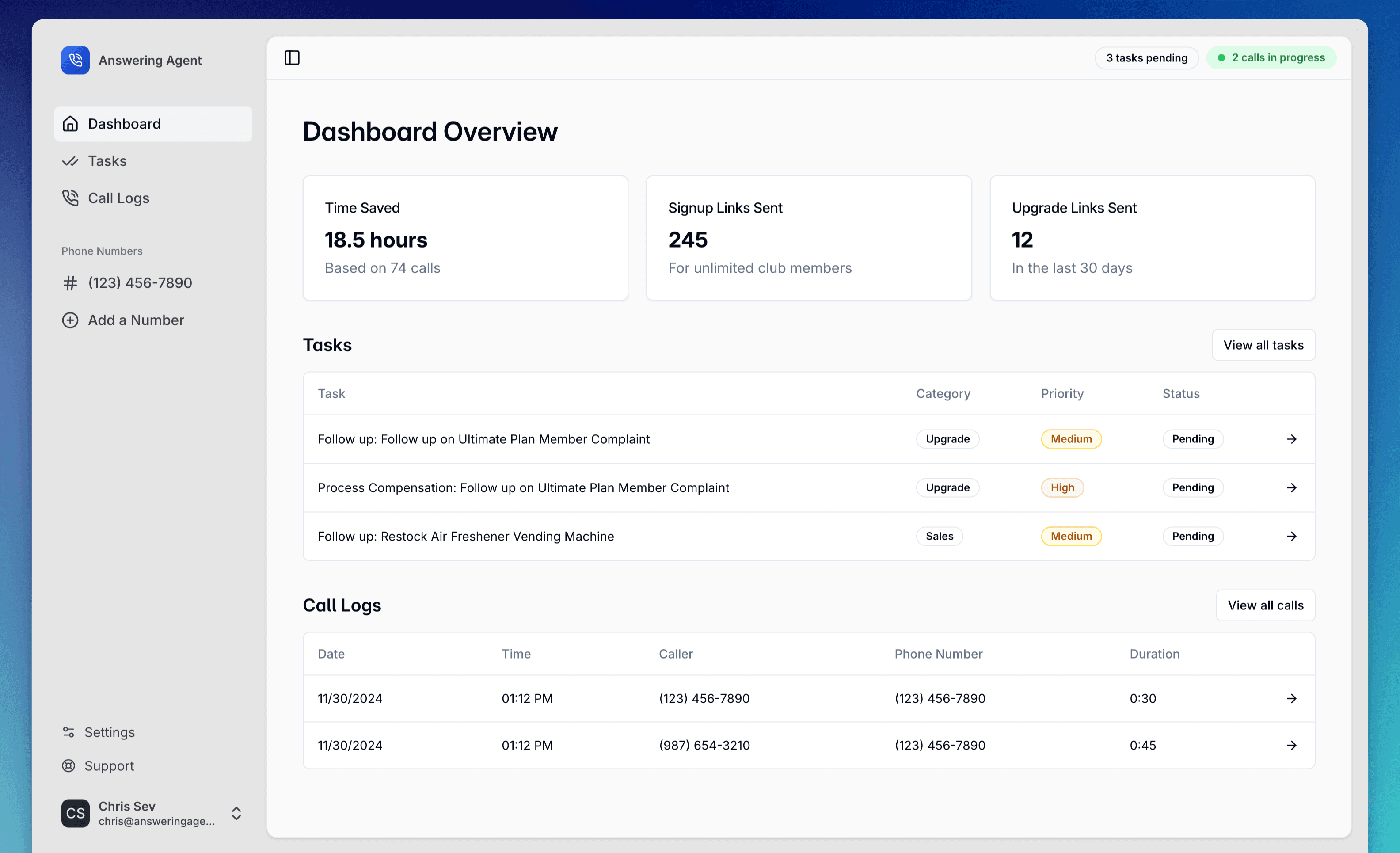
Daily dashboard
These pages cover the important operating loop: see what happened, handle what needs a person, improve missing answers, and check the trend.
The live record of calls, chats, texts, and emails. Use it to review what happened and open the full thread.
The work queue. These are follow-ups the AI created because a person should handle the next step.
Unanswered or repeated customer questions. This is where you spot gaps in the AI knowledge.
The high-level view of conversation volume, outcomes, categories, and team follow-up.
Tasks
The AI creates tasks when a conversation needs human follow-up: refunds, callbacks, complaints, membership issues, urgent escalations, or anything your setup says should not be handled automatically.
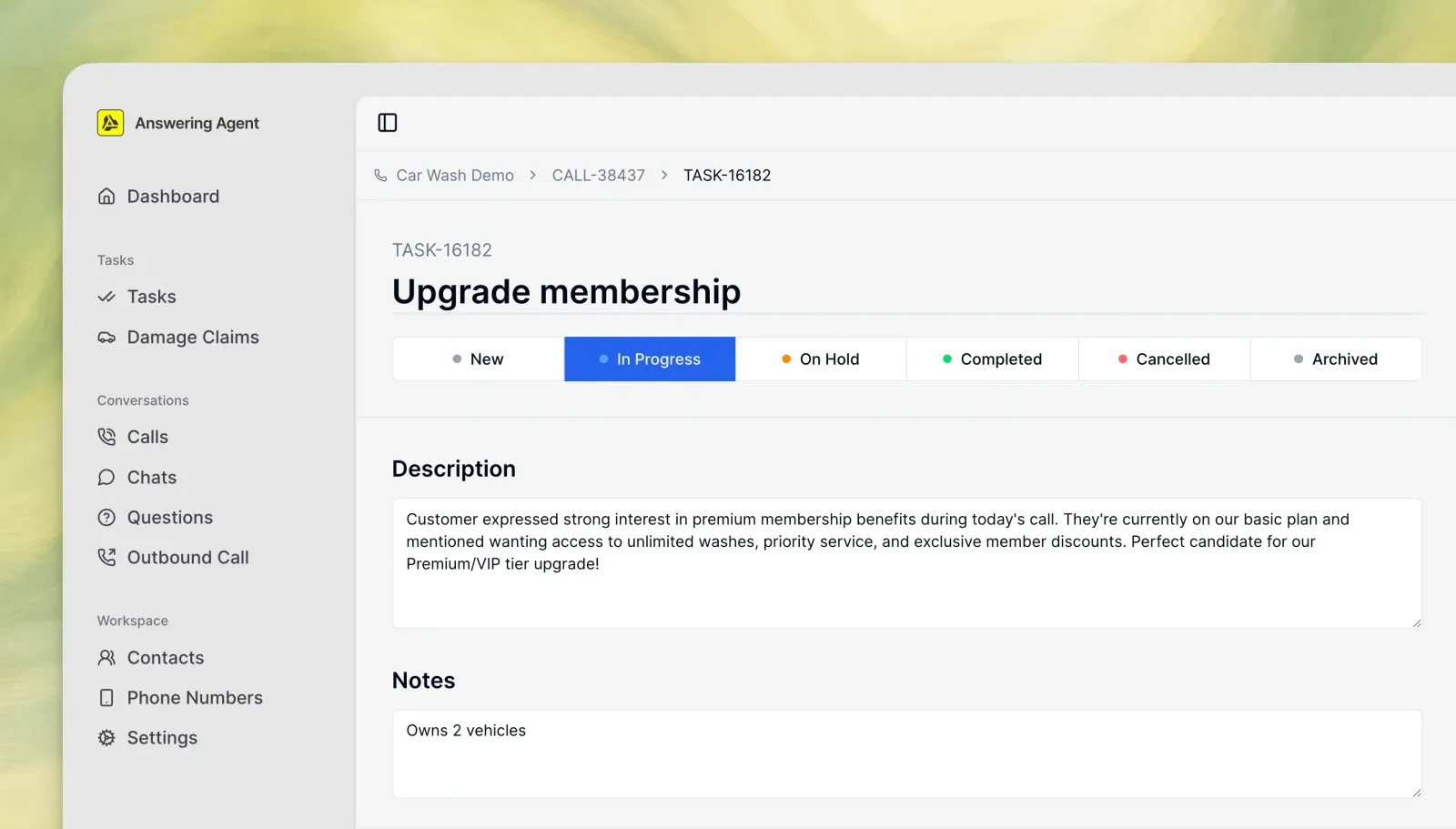
Conversations
Use Conversations when you need the actual call, chat, text, or email thread. Filter by channel, read the summary, scan the transcript, and follow any tasks created from that conversation.
Phone calls
Website chat
SMS
If you want to understand what happened, open Conversations. If you want to know what to do next, open Tasks.
Configure the AI
Owners and admins can update what the AI knows, how it sounds, when it creates work, and when it transfers to a person. Start with Knowledge before tuning anything else.
Team Settings -> AI Configuration -> Knowledge
Add hours, pricing, memberships, policies, service rules, and anything the AI should know before answering.
Team Settings -> AI Configuration -> Voice
Choose the voice, greeting, and speaking style callers hear when the AI answers the phone.
Team Settings -> AI Configuration -> Tasks
Tune what should become a follow-up task, which details to capture, and when a human should step in.
Team Settings -> AI Configuration -> Forwarding
Control transfers and escalation rules for calls that should reach a person immediately.
Channels
Phone is the core experience. Website Chat, SMS, and Email each have their own setup screen so you can activate the channel, confirm the customer-facing details, and test that conversations land in the dashboard.
Team Settings -> Website Chat
Customize the greeting and quick replies, copy the install snippet, and confirm chats appear in Conversations.

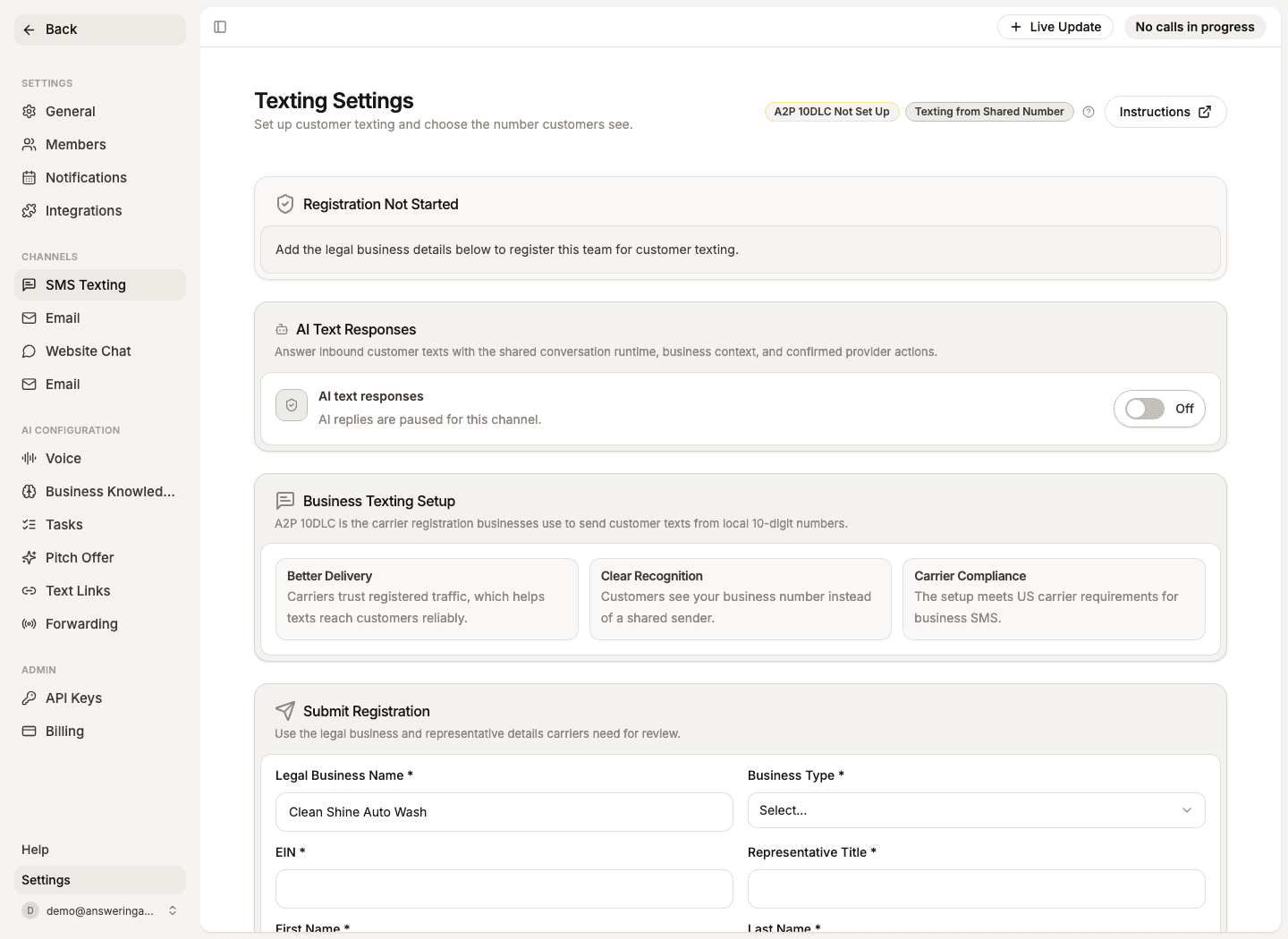
Team Settings -> SMS Texting
Submit carrier registration, choose the sender number, and turn on AI text responses when ready.
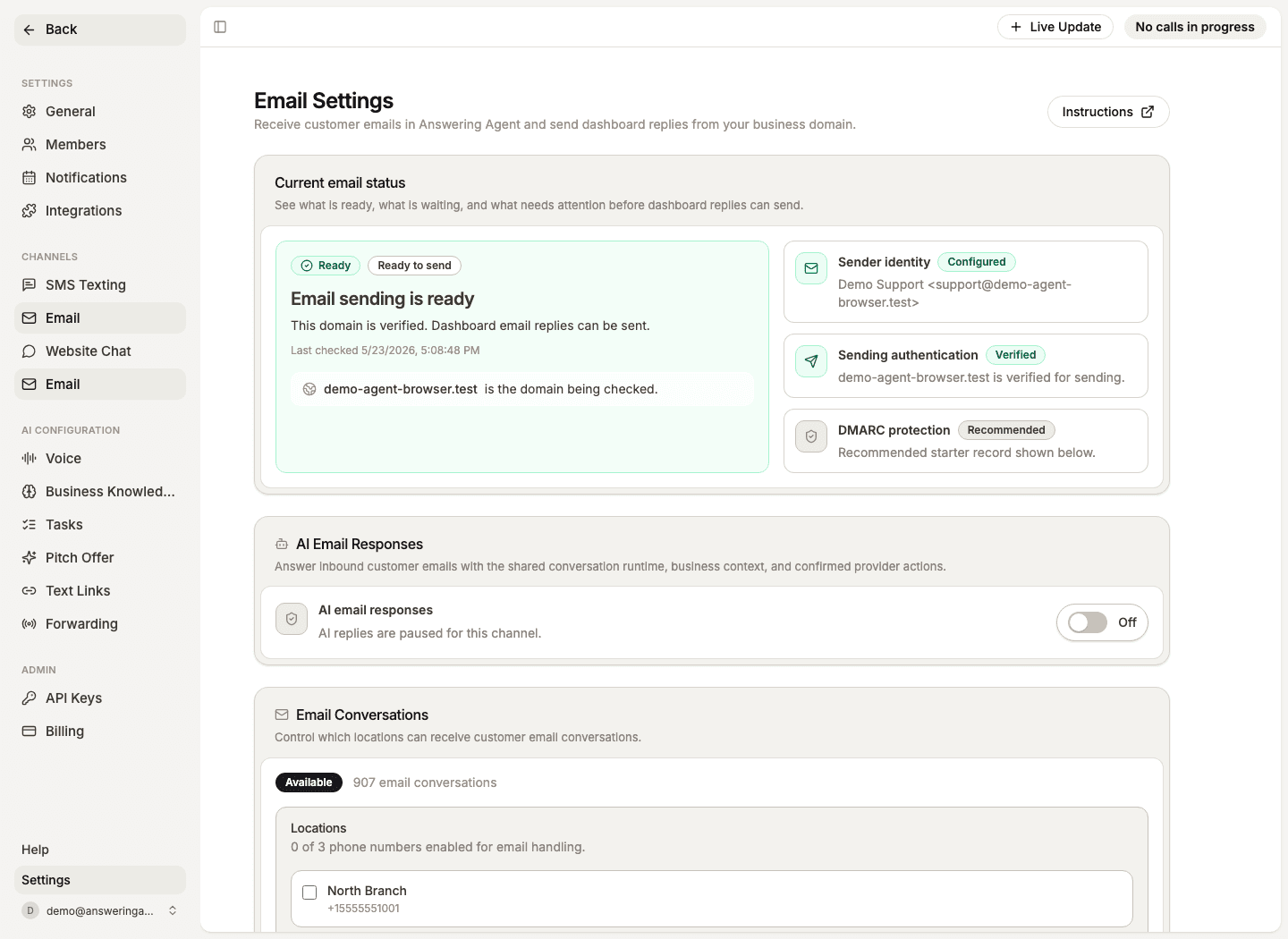
Team Settings -> Email
Verify your sending domain, forward inbound mail, enable locations, and turn on AI email responses.
Team setup
Use Team Settings for admin setup and Account Settings for your own notification preferences. Keep phone number assignments current so people only see the work they should handle.
Invite teammates, choose roles, and assign phone numbers or locations.
Choose who receives task, conversation, question, and team alerts.
Review numbers, location labels, assignments, and routing setup.
Daily rhythm