
Your front desk,
in Claude and ChatGPT
Connect Answering Agent to Claude or ChatGPT. Ask about calls, transcripts, tasks, and reports in plain English. Update tasks and reply to customers without opening the dashboard.
Connect in two minutesSign in with your dashboard login. Nothing to install.
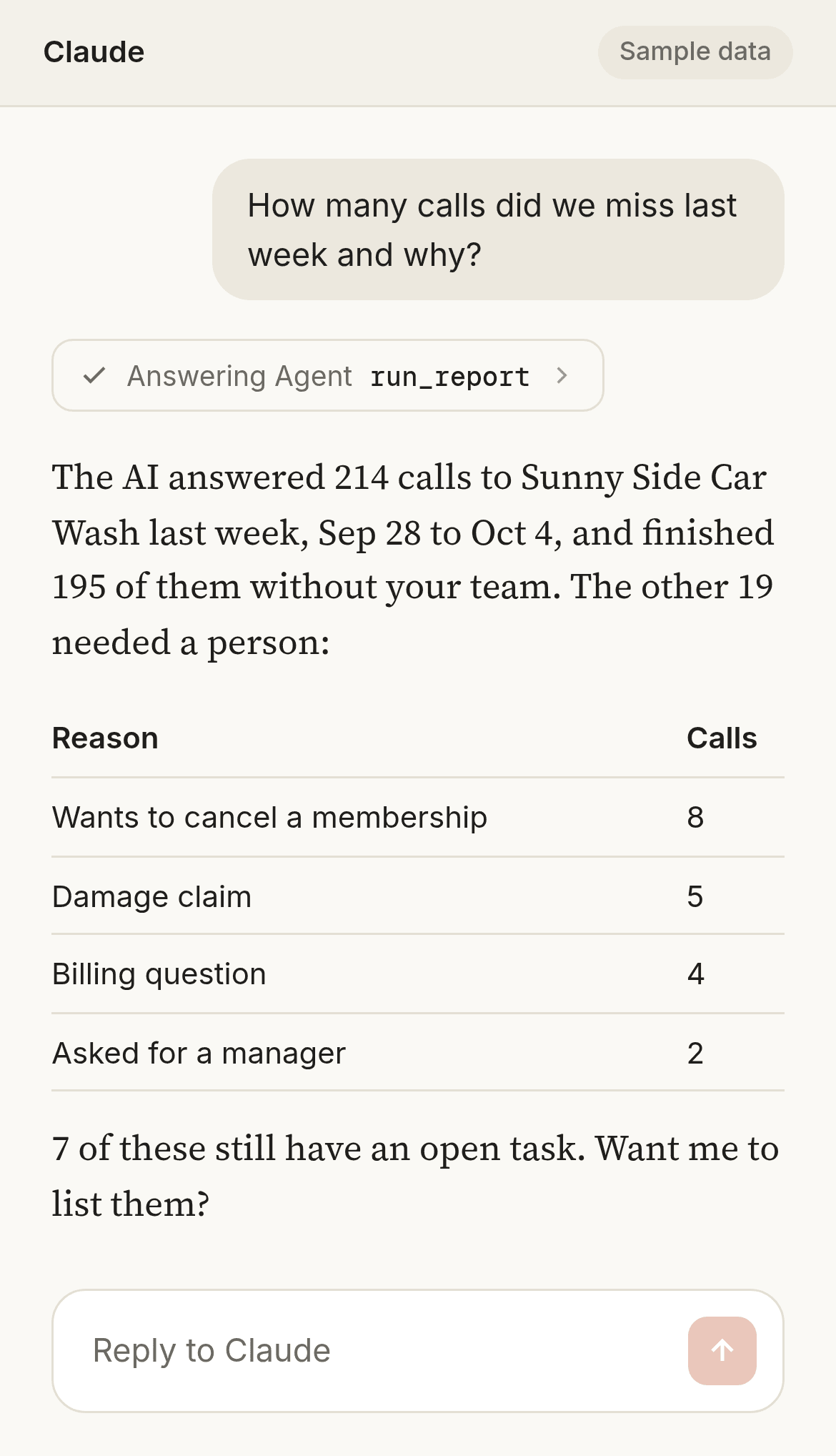
Ask it the way you’d ask your site manager.
Claude or ChatGPT looks up the answer in your Answering Agent account and replies in plain English. It reads your calls, texts, chats, emails, transcripts, tasks, contacts, and reports.
- How many calls did we miss last week, and why?
- Find the call where a customer mentioned a damaged mirror.
- How many retention offers did we pitch last month, and how many were accepted?
- Which hours get the most calls at the Lamar Blvd location?
- What did customers ask for most this week?
- List the open tasks assigned to me, oldest first.
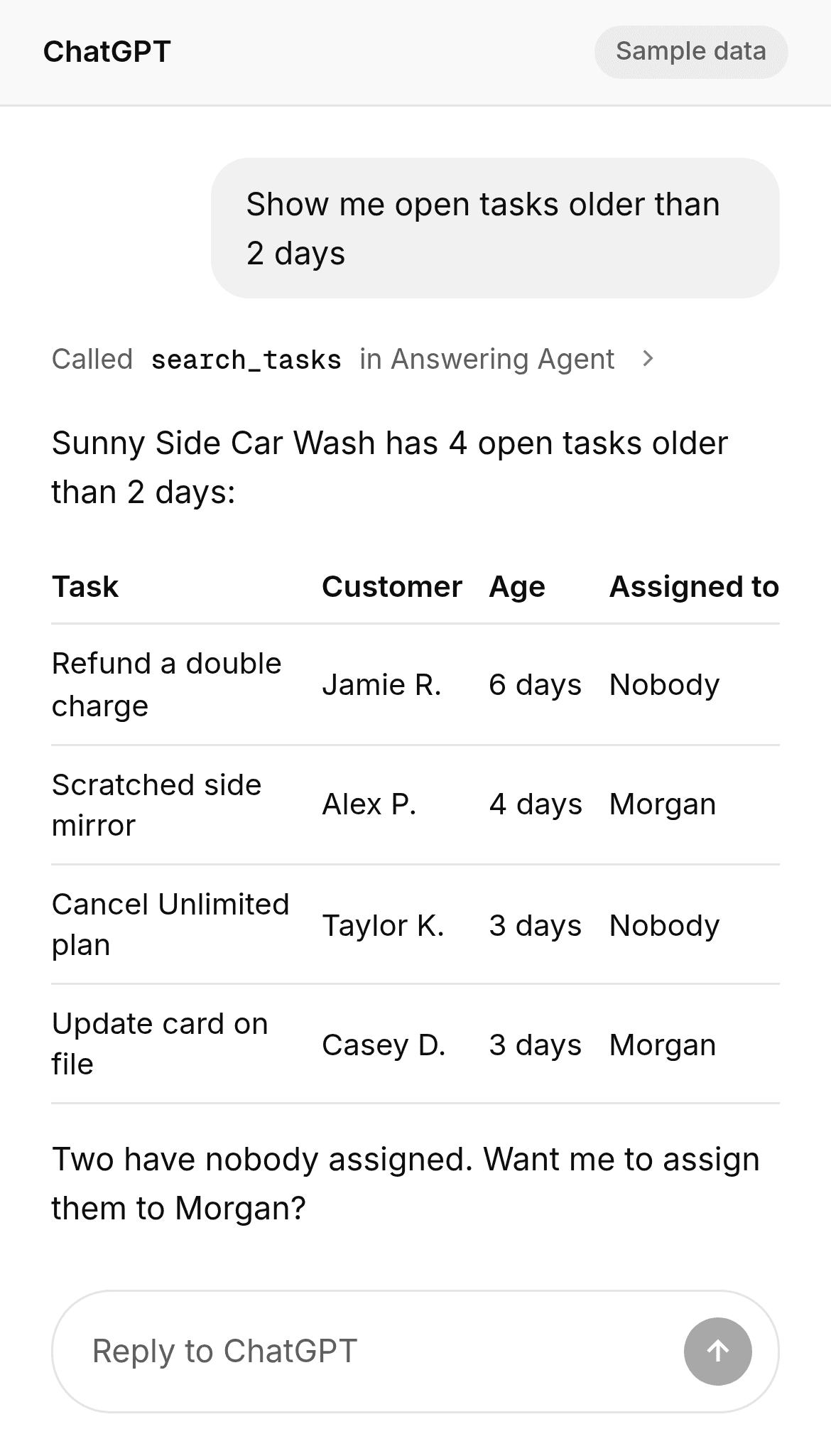
Close out tasks from the chat.
Change a task’s status or assignee. Add internal notes to tasks from calls, texts, chats, and emails. It works the same as the dashboard, and the assignee gets the usual notification.
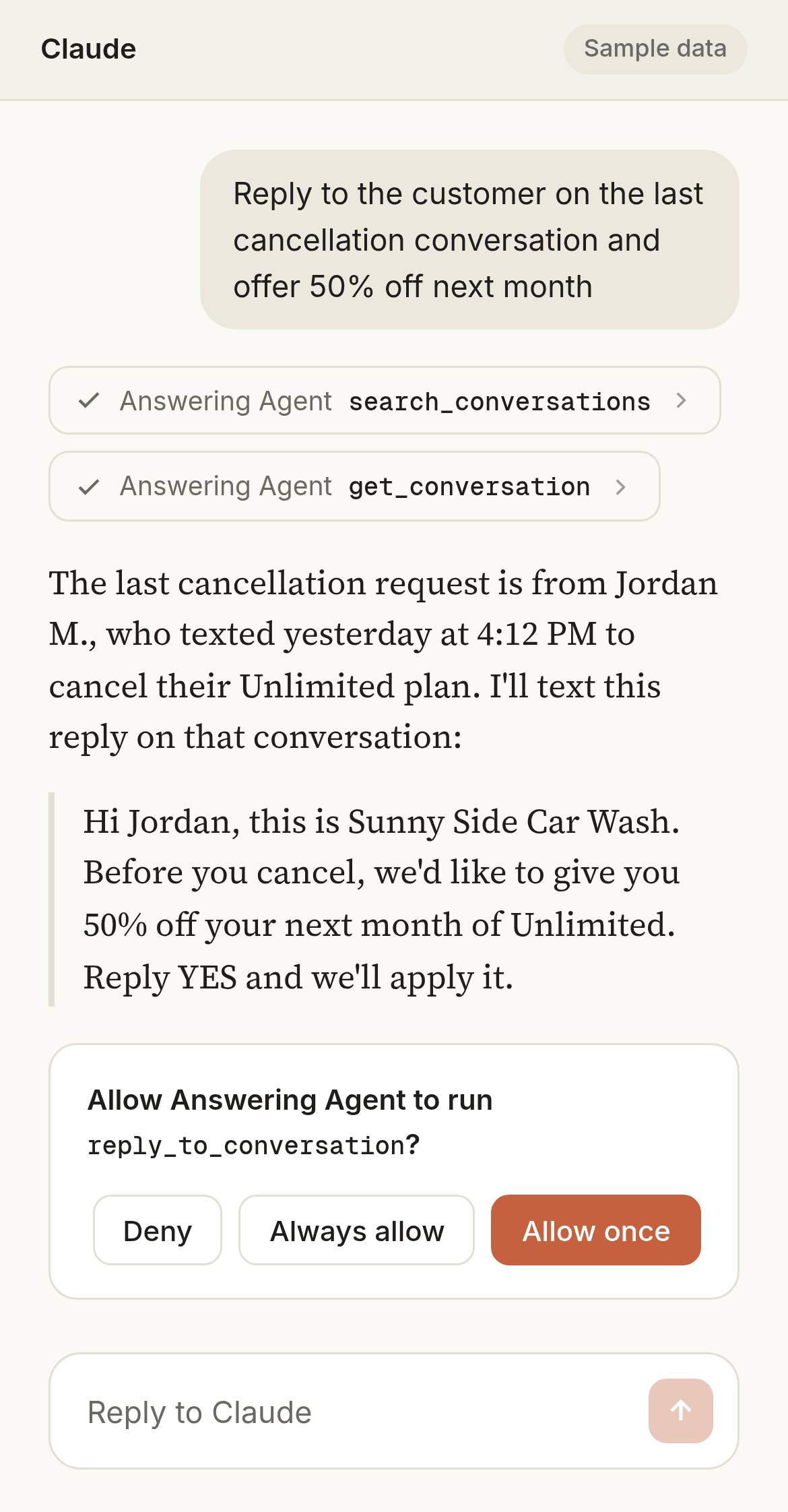
Reply to customers from the chat.
Ask for a text or email reply on an existing conversation. By default, Claude and ChatGPT show you the message and ask before it goes out. It sends from your usual number or address and shows in the dashboard under your name.
Connect in two minutes.
Team owners, admins, and managers can connect.
In Claude, open Connectors and add a custom connector. In ChatGPT, open Plugins and add a custom MCP server. Paste this web address.
https://answeringagent.com/api/mcpSign in with your Answering Agent dashboard login.
Approve the connection for your team, then ask your first question.
What it can and can’t do.
- It sees what you see in the dashboard. If your access is limited to some phone lines, so is the connection.
- Each connection works on one team, the one you have open in the dashboard.
- Changes and replies run as you and show in Activity under your name.
- It can’t change your settings.
- By default, Claude and ChatGPT ask before a change or a reply. If you set a tool to always run, they stop asking.
- The AI app never sees your password. To disconnect, remove Answering Agent from Claude or ChatGPT.
Common questions.
Does it cost extra?
No. It comes with every Answering Agent plan. Your Claude or ChatGPT plan decides whether you can add a custom connector.
Do I need to install anything?
No. You paste one web address into Claude or ChatGPT, then sign in with your dashboard login. It takes about two minutes.
Can it see my other teams?
No. Each connection works on one team. To use another team, switch to it in the dashboard and connect again.
Does it work with other AI apps?
Yes. Any AI app that can connect a remote MCP server with sign-in works. The setup guide has the steps.
See your new front desk in action.
Bring a few questions your customers ask. We will show you how the agent handles them and how your team picks up anything that needs a person.
Book a demo